Contents · 9 sections↓
- 01Can AI agents do admin work like expenses, scheduling and forms?
- 02What an AI agent does in admin work
- 03Which admin tasks to hand over (and which to keep)
- 04Three admin tasks, with real prompts and output
- 05How to set up an admin agent safely, step by step
- 06Copy this: admin agent task template
- 07Common mistakes
- 08FAQ
- 09Next steps
AI agents for admin work can now read receipts, compare calendars and fill in forms for you, not just tell you how. ChatGPT, Gemini and Claude all offer agent modes that click, type and work across your apps. This guide shows, task by task, what to hand an agent for expenses, scheduling and forms, what it gets wrong, and the one rule that keeps admin agents safe: the agent prepares, you commit.
Can AI agents do admin work like expenses, scheduling and forms?
Yes, for the preparation. An AI agent can turn receipts into expense lines, find a meeting time across calendars and fill a form from facts you give it, which removes most of the typing. It still makes mistakes with dates, time zones and missing facts, so you check its draft and you do the final step yourself: submitting, sending, booking or paying.
Key takeaways:
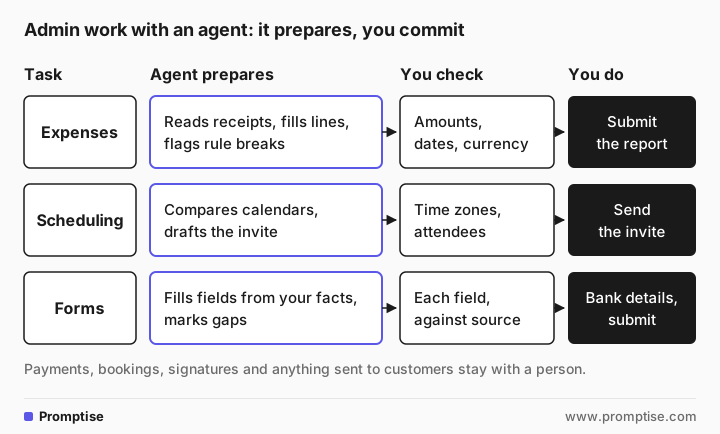
The agent prepares; you commit. Let it draft and fill; keep submit, send, book and pay for yourself.
Give it the rules. Your expense policy, meeting rules or form instructions turn guesses into flags.
Ask for a "questions" list. The most useful line in any admin draft is what the agent couldn't find.
Never let it type bank details, passwords or card numbers. Enter those yourself, through the tool's secure sign-in where it has one.
Check the three usual slips: dates, time zones and currency.
[02]
What an AI agent does in admin work
A chat assistant answers questions. An AI agent takes steps: it opens a website or an app, reads what's there, fills in fields, and moves to the next step, pausing when it needs you. In 2026 the mainstream options include:
ChatGPT Work with its cloud browser. OpenAI's help center says the cloud browser runs on "a separate computer in the cloud", can "enter information into forms", and keeps working after you close your computer. OpenAI's own examples include "Find a DMV appointment and prepare a booking for your approval" and "Reconcile invoices and update records in your accounting software". It is available on paid plans except Free and Go.
The Gemini agent in Google Workspace, announced October 8, 2026, works across Gmail, Calendar, Docs and Sheets.
Claude Cowork, Anthropic's mode for multi-step tasks, works with files and connected apps, and asks before acting in its Manual permission mode.
Many expense, travel and HR systems also add their own built-in agents. Check what your company already licenses before adding a new tool, and use the tool IT has approved.
[03]
Which admin tasks to hand over (and which to keep)
Hand it over | Keep for yourself |
|---|---|
Reading receipts into expense lines | Submitting the expense report |
Matching receipts to card transactions | Deciding what counts as a business expense when the policy is unclear |
Finding a time that works across calendars | Sending invites to customers or executives |
Drafting the invite and agenda | Booking travel or venues that cost money |
Filling a form from facts you supply | Entering bank, tax or identity numbers |
Listing what's missing from a form | Signing, accepting terms, or submitting the form |
Comparing an invoice to a rate sheet | Approving payment |
The right column has one thing in common: once done, it is hard to undo, or it commits money or your company's word. OpenAI's help page describes the same line for its agent: it is designed to ask for confirmation before actions "that could be hard to reverse or create a financial, legal, account, or other real-world commitment, such as confirming a booking or making a payment."
[04]
Three admin tasks, with real prompts and output
Each example shows a prompt you can copy and the real answer from gpt-5-mini, a small OpenAI model, trimmed with "…". The preparation step works in any chat tool; in an agent mode, the same instructions drive the clicking and typing. Fernway, its people and its numbers are made up. Results vary by tool and model, so check every draft.
1. Expenses: receipts into report lines
Task: Turn these receipts into expense report lines. Do not submit anything.

Our expense rules:
- Client meals: up to $75 per person, receipt must list the number of guests.
- Alcohol is not reimbursed.
- Every line needs a date, merchant, category and amount.
- Foreign currency: use the card statement amount in USD. If you don't have it, don't convert; ask me.

Receipts (text copied from photos):
1. Union Station Garage, Denver. Oct 14, 2026. Parking 6 hrs. $28.00
2. Osteria Lucca, Boulder. Oct 15, 2026. Dinner, 3 guests. Food $162.40, wine $54.00, tip $35.00. Total $251.40
3. Café Central, Vienna. Food and coffee. EUR 23.80

Format: a table with Date | Merchant | Category | Amount | Reimbursable amount | Note. Then a list titled "Questions before I submit" for anything missing or against the rules.Date | Merchant | Category | Amount | Reimbursable amount | Note
--- | --- | ---: | ---: | ---: | ---
2026-10-14 | Union Station Garage, Denver | Parking | $28.00 | $28.00 | Parking, 6 hrs
2026-10-15 | Osteria Lucca, Boulder | Client meal | $251.40 | $197.40 | Dinner with 3 guests; food $162.40 + tip $35.00 reimbursable; wine $54.00 excluded (alcohol not reimbursed)
…
Questions before I submit
- For Café Central (EUR 23.80): do you have the card statement amount in USD? Policy requires using the USD card amount; I cannot convert EUR without that.
- Confirm that excluding the wine $54.00 at Osteria Lucca is correct (alcohol is not reimbursed).
- Confirm tip at Osteria Lucca ($35.00) is reimbursable (included above as allowed).
…What to check: It applied the alcohol rule and refused to guess the exchange rate, both because the prompt said so. But look at the Vienna receipt: it has no date, the rules say every line needs one, and the model wrote the date as "2026-??-2026" without adding it to its questions. That is exactly the kind of slip that bounces an expense report. Read every date and amount against the receipt before you submit.
2. Scheduling: one slot across four calendars
Task: Find a 45-minute slot next week for a quarterly review with four people, and draft the invite. Do not send anything.

Next week is Monday Nov 2 to Friday Nov 6, 2026. All times are Mountain Time unless noted.

Free times:
- Priya (Denver): Mon 9:00-12:00, Tue 13:00-17:00, Thu 9:00-11:00
- Marcus (Salt Lake City, also Mountain Time): Mon 10:00-11:30, Tue 14:00-16:00, Wed all day
- Lena (Chicago, Central Time): Mon 11:00-14:00 CT, Tue 15:00-18:00 CT, Thu 10:00-12:00 CT
- Sam (Denver): Tue 13:30-17:00, Thu 9:00-10:30

Rules: no meetings before 9:00 or after 17:00 for anyone in their own time zone. Prefer earlier in the week.

Output: the two best slots (with each person's local time), why, and a short invite text for the first slot. If no slot works for all four, say so and suggest the best option without one person.- Priya (Denver, MT): 14:00–14:45
- Marcus (Salt Lake City, MT): 14:00–14:45
- Sam (Denver, MT): 14:00–14:45
- Lena (Chicago, CT): 15:00–15:45 CT
Why: This is the earliest possible 45‑minute window that fits everyone’s listed availability on Tuesday (the preferred earlier-in-the-week day). It stays within 9:00–17:00 local time for all participants.
…
- Agenda (high level): 1) Key Q3/Q4 results and highlights (10 min) 2) Risks & blockers (10 min) 3) Priorities and action items for next quarter (20 min) 4) Wrap & next steps (5 min)
…What to check: The slot is right. Sam isn't free on Monday, so Tuesday at 14:00 Mountain Time is the earliest time all four share, and Lena's 15:00 Central is inside her hours. But the invite came with an agenda nobody asked for, with topics the model made up. Delete or replace it before the invite goes out. In an agent with calendar access, the agent reads real calendars instead of your list, which saves the typing but makes time zones even more important to check.
3. Forms: a customer's new-supplier form
Task: Prepare the answers for a customer's new-supplier form so I can paste them in. Do not fill in anything you can't find in the facts below.

Form fields:
1. Legal company name
2. Trading name
3. Registered address
4. Year founded
5. Number of employees
6. Primary contact name, email and phone
7. Tax ID (EIN)
8. Bank account and routing number
9. Insurance: general liability coverage amount
10. Do you use subcontractors? (yes/no, explain)

Facts:
- Fernway Logistics LLC, trading as Fernway. 120 Sample St, Denver, CO 80202.
- Founded 2011. About 300 employees.
- Contact: Maria Ortiz, accounts, maria.ortiz@fernway.example, (303) 555-0142.
- We use owner-operator drivers for about 20% of loads.

Rules: For any field without a fact above, write [ASK] and say who at a company usually has it. Leave field 8 as [A PERSON ENTERS THIS] no matter what. Output as a numbered list matching the form. Use a colon, not a dash, to separate parts of an answer.1. Legal company name: Fernway Logistics LLC
…
6. Primary contact name, email and phone: Maria Ortiz, maria.ortiz@fernway.example, (303) 555-0142
7. Tax ID (EIN): [ASK] (usually held by: CFO or Head of Accounting)
8. Bank account and routing number: [A PERSON ENTERS THIS] (usually provided by: Treasury/Accounts Payable)
9. Insurance: general liability coverage amount: [ASK] (usually held by: Risk Manager or Insurance Broker)
10. Do you use subcontractors? (yes/no, explain): Yes: We use owner-operator drivers for about 20% of loads.What to check: This is the behavior you want: real facts filled in, gaps marked, and the bank field left for a person. Without the "do not fill in anything you can't find" rule, models tend to fill plausible-looking numbers. Check field 10 with whoever owns supplier relationships; "about 20%" may need a more careful answer on a customer's form.
[05]
How to set up an admin agent safely, step by step
Use the tool your company approved, signed in with your work account. If an agent needs your login for a website, use the tool's secure sign-in; OpenAI's help page, for example, says to "Never paste passwords, security codes, or payment details into the conversation."
Give it the rules in writing: your expense policy, meeting rules or the form's instructions. Paste the relevant part, not the whole handbook.
Say what it must not do: "Do not submit, send, book or pay. Stop and show me first."
Ask for a questions list at the end of every draft.
Keep website access tight. Tools like ChatGPT's cloud browser let you choose whether to approve each new site; "Always ask" is the safest setting while you learn.
Check the draft against the source: receipt, calendar, company facts. See how to check AI answers.
Do the final step yourself, in the real system.
For the risks specific to agents that use a web browser, such as hidden instructions on web pages, read browser AI agents at work.
[06]
Copy this: admin agent task template
Task: [expenses / scheduling / form] for [what, when]. Do not submit, send, book or pay anything.

Rules to follow:
- [paste the relevant policy lines or form instructions]

Inputs:
- [receipts / availability / facts]

Never fill in: dates, amounts, ID numbers or bank details that are not in the inputs. Write [ASK] instead.

Output:
- [table or numbered list matching the form]
- "Questions before I submit": everything missing, unclear or against the rules.

Stop after the draft and wait for me.[07]
Common mistakes
Mistake | Why it fails | Fix |
|---|---|---|
"Do my expenses" with no policy | The agent guesses what's allowed | Paste the rules it must apply |
Letting it submit or send | Mistakes leave your hands before you see them | "Prepare only; stop before submit" |
Trusting dates and time zones | The most common slips in admin drafts | Check every date and local time |
Pasting card numbers or passwords into chat | They sit in your chat history | Enter them yourself, through secure sign-in |
Accepting extras it added | Agendas, notes or answers nobody asked for | Delete what you didn't ask for |
Using a personal AI account for company forms | Company data leaves approved tools | Use the tool IT approved; see is it safe to use ChatGPT at work |
Some forms and approvals are regulated in some places, such as tax, payroll or HR records. Ask your finance, HR or legal team what applies before an agent touches them. Decisions about people, such as leave approvals or pay changes, stay with their manager and HR.
[08]
FAQ
Can an AI agent do my expense report?
It can do most of the preparation: read receipts, fill in report lines and flag items that break your policy. Give it your expense rules and ask for a list of questions at the end. Check every date, amount and currency against the receipts, and submit the report yourself.
Can AI schedule meetings for me?
Yes. An agent with calendar access can compare free times, propose slots and draft the invite. Ask it to show each person's local time and to stop before sending. Check time zones and the attendee list, and remove any agenda or details it made up.
Can AI fill out forms for me?
It can fill a form from facts you give it, and agent modes can type into web forms directly. Tell it not to fill anything it can't find, to mark gaps, and to leave bank, tax and identity numbers for you. Review every field before you submit.
Is it safe to let an AI agent enter payment or bank details?
Don't. Enter payment, bank and password details yourself through the website or the tool's secure sign-in. OpenAI's own guidance says never to paste passwords, security codes or payment details into the conversation, and agents are designed to ask before payments.
Which AI agent is best for admin tasks?
The one your company already approves and connects to your calendar, email and expense system. ChatGPT Work, the Gemini agent in Google Workspace and Claude Cowork all handle multi-step tasks; many expense and HR systems also have their own agents. Integration with your systems matters more than the brand.
What admin tasks should I not give an AI agent?
Anything that commits money, signs or accepts agreements, sends messages to customers or executives without review, or decides something about a person. Let the agent prepare those, and do the final step yourself.
[09]
Next steps
Write a clear task for any agent: how to delegate a task to an AI agent.
Agents that use your browser: browser AI agents at work.
Prompts for finance teams: AI for finance.
Why approvals matter: what is human in the loop AI.
Avoid fixing AI work all day: botsitting.
When to skip AI entirely: when not to use AI at work.