Contents · 10 sections↓
- 01What is a Claude Cowork plugin, and how do you set one up for your team?
- 02How Cowork plugins work
- 03When a team plugin is worth it (and when it isn't)
- 04What you need before you start
- 05How to set up a Cowork plugin for your team, step by step
- 06Copy this: team plugin planning sheet
- 07What Owners and admins control
- 08Common mistakes
- 09FAQ
- 10Next steps
Claude Cowork plugins let a team package the instructions, shortcuts and tool connections it uses every week, so everyone gets the same help from Claude without re-explaining the job. This guide shows a team lead how to set one up: pick the task, write the instructions, test them on real requests, share the plugin with a few colleagues, then publish it to the whole organization. Every menu name and setting comes from Anthropic's own help pages, checked on October 22, 2026.
What is a Claude Cowork plugin, and how do you set one up for your team?
A Claude Cowork plugin is a package that adds skills (written instructions Claude follows), commands (named shortcuts), connectors (links to tools like a CRM or a shared drive) and, in Cowork, helper agents to Claude in one install. To set one up, open Customize > Plugins > Add, create the plugin with Claude's help or upload a folder, test it on real work, then use Share for named colleagues or Publish to org for everyone. On Team and Enterprise plans, an Owner decides whether the plugin is optional, installed by default or required.
Key takeaways:
One plugin, one job. The best first plugin covers a single task your team repeats every week, such as a client update or a report.
The skill is the plugin. Most of the value sits in one plain-text instruction file. Vague instructions give vague, invented answers.
Test before you share. Run the plugin on five real requests and fix the instructions each time it guesses.
Sharing does not share sign-ins. Each colleague connects the plugin's tools with their own account, so they only reach data they could already reach.
Give it an owner. Someone has to update the plugin when the process changes, or it quietly drifts out of date.
[02]
How Cowork plugins work
Cowork is the part of the Claude apps where Claude carries out multi-step tasks for you, such as building a spreadsheet from several files or turning notes into slides, instead of answering one message at a time. Anthropic's help center lists it on Pro, Max, Team and Enterprise plans, in the desktop app, on the web and on mobile.
A plugin adds four kinds of pieces to Claude:
Piece | What it is, in plain words | Where it works |
|---|---|---|
Skill | A written procedure, such as "how we write the weekly client update". Claude loads it when a request matches its description. | Chat, Cowork, Claude Code |
Command | A named shortcut you type, such as /client-updates:weekly. | Chat, Cowork, Claude Code |
Connector | A link to an outside tool or data source. Technically it uses MCP, a standard way for AI apps to talk to other software. | Chat, Cowork, Claude Code |
Agent | A helper Claude can hand part of a task to. | Cowork and Claude Code only |
Behind the menus, a plugin is a small folder of plain text files: a short label file called a manifest, one folder per skill, and an optional connector file. No code is needed.
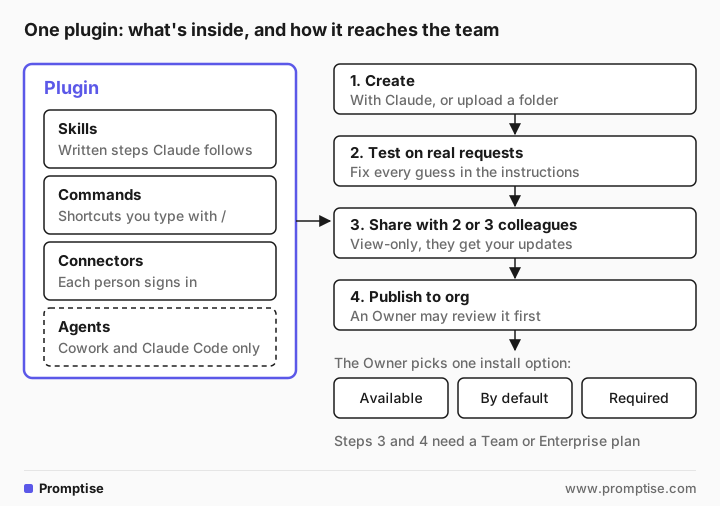
Plugins are saved to your account, so one you add in the desktop app also shows up in chat on the web and in Claude Code when you sign in with the same account. Anthropic also publishes ready-made plugins for roles such as sales, finance, legal, marketing and customer support in its open-source knowledge-work-plugins repository. They are generic starting points that you adapt to your own team.
[03]
When a team plugin is worth it (and when it isn't)
Good fit | Poor fit |
|---|---|
The same task comes up every week for several people | A one-off project |
There is a "right way" the team already agrees on | Everyone does it differently and nobody has decided |
The steps and format can be written down | The task depends on judgment you can't put in words |
A wrong draft is easy to spot and fix | A mistake would reach a customer or a person's record unchecked |
People keep pasting the same background into chats | The background changes daily |
If the task is only yours, a personal skill or project instructions are simpler. The guide on reusable context for AI at work covers those options. A plugin earns its place when several people need the same instructions and you want one copy to update.
Decisions about people, such as hiring, performance, pay or discipline, should not be handed to a plugin. AI can draft the wording; HR and the responsible manager make the decision.
[04]
What you need before you start
A paid Claude plan. Plugins work on Pro, Max, Team and Enterprise. Sharing with colleagues and publishing to an organization need Team or Enterprise.
The right switches turned on. An Owner must have Cowork and Skills enabled for the organization. If Share or Publish to org is missing, ask an Owner to check Organization settings > Plugins & skills > Policy.
One repeated task, and two or three real past examples of it with the result you would have wanted.
The tools it needs. If the plugin should read a CRM or a shared drive, find out whether that connector is already approved in your organization.
A named owner for the plugin, usually the team lead or the person who knows the process best.
[05]
How to set up a Cowork plugin for your team, step by step
The example below follows an account team at Fernway, a made-up logistics company, that sends every client a weekly status email. Today each account manager writes it differently.
1. Pick one task and collect examples
Write down the task in one sentence, when it comes up, and what a good result looks like. Pull two or three real emails your team was happy with; they become your test cases.
2. Start the plugin
Go to Customize > Plugins in claude.ai or the desktop app and select Add. You have three choices:
Create with Claude opens a conversation, or a Cowork task in the desktop app, where you describe the job and Claude assembles the plugin. Select Save plugin on the card it shows.
Create a plugin opens a form and an editor, for when you already know what each part should say.
Upload plugin adds a folder you prepared, zipped.
If a ready-made plugin from Anthropic is close to what you need, add it from Discover first, then select Customize on it to adapt the skills and connectors.
3. Write the skill instructions
Whichever route you take, read the skill Claude wrote and make it specific. This is where most plugins succeed or fail. Here is the kind of instruction many people write first:
Write client updates for the Fernway account team in our style.We gave that instruction and the request below to gpt-5-mini, a small OpenAI model, to show what vague instructions produce. Claude in Cowork reads the same kind of file; its wording will differ, but the same gaps show up. The request:
Client update for Harlow Foods please. Notes: 412 pallets moved this week, up from 380. Two trucks late Tuesday into the Ogden DC, about 3 hours. New dock schedule at SLC starts Monday. Maria is the AM.Quick summary
- 412 pallets moved this week (up from 380 last week).
- Two inbound trucks to the Ogden DC were delayed ~3 hours on Tuesday. No lost product reported.
- New dock schedule at SLC goes live Monday. Maria will be the AM for SLC operations.
…
- Ogden DC delays: two trucks arrived late Tuesday, each ~3 hours. Dock backlog was cleared the same day; no reported damage or late outbound shipments attributable to the delay.
…
If you want, I can schedule a short call early next week with Maria and the DC leads to walk through the SLC schedule rollout.It reads well and it is wrong in places. "No lost product reported" and "Dock backlog was cleared the same day" appear nowhere in the notes. It also misread Maria, the account manager, as the person running the new schedule. A client would take every line as fact.
Now a skill written the way Anthropic's docs recommend: a description that says when to use it, then numbered steps, a fixed format and clear rules for missing facts.
---
name: weekly-client-update
description: Write the weekly status email to a Fernway logistics client. Use when someone asks for a client update, weekly update, account status email, or pastes shipment notes for a client.
---

# Weekly client update

You write the weekly status email that Fernway account managers send to logistics clients.

## Steps
1. Use only the facts in the notes the person gives you. Never invent numbers, dates or causes.
2. If the notes do not include the on-time delivery rate for the week, or a delay has no stated cause, list it under "Ask before sending" instead of guessing.
3. Write the email in this order:
   - Subject line: "Fernway weekly update: <client name>, week of <date>"
   - One-sentence summary.
   - "This week": 3 to 5 bullets, numbers first.
   - "Issues and fixes": each delay with its cause and what we are doing. Write "None this week" if there are none.
   - "Next week": up to 3 bullets.
   - Sign-off with the account manager's first name.
4. Under 180 words, not counting the "Ask before sending" list.

## Style
- Plain, friendly, specific. Short sentences.
- Never write "best-in-class", "world-class", "synergy" or "we apologize for any inconvenience".
- Say "delayed", not "experienced challenges".
Same request, same model:
Subject: Fernway weekly update: Harlow Foods, week of [please confirm date]

Summary: This week we increased throughput and implemented a new SLC dock schedule starting Monday.
…
Issues and fixes:
- Two trucks late Tuesday into the Ogden DC (about 3 hours). Cause not stated; ask operations for root cause and confirm any corrective actions.
- No other delays reported.

Next week:
- Monitor Ogden truck arrivals to verify improvements.
- Confirm SLC dock schedule execution and any lift in throughput.
- Report updated pallet total and on-time delivery rate.
…
Ask before sending:
- Please confirm the week of <date> to use in the subject line.
- Please provide the on-time delivery rate for the week.
- Please provide the cause of the two-truck delay into Ogden (if known) and any fixes already implemented.
Much better: it stopped inventing causes, flagged the missing date and asked the account manager the right questions. Two problems remain. The summary says the new schedule was "implemented", but it only starts Monday. And all three "Next week" bullets are promises nobody made; the notes mention none of them.
4. Test on real requests and fix what it guesses
Each problem points to a sentence to add. We changed two lines in the skill:
2. If the notes do not include the week's date, the on-time delivery rate, or the cause of a delay, list it under "Ask before sending" and leave a [blank] in the email. Never fill these in yourself.
…
- "Next week": up to 3 bullets, only plans that are in the notes. Never promise actions the notes don't mention.Subject: Fernway weekly update: Harlow Foods, week of [blank]
One-line summary: 412 pallets moved this week; two trucks were delayed into the Ogden DC on Tuesday.
…
Next week:
- New dock schedule at SLC goes into effect on Monday.
Thanks,
Maria
Ask before sending:
- Week of (date): [blank]
- On-time delivery rate for the week: [blank]
- Cause of the two-truck delay into Ogden: [blank]
- Actions taken or planned to address the Ogden delay: [blank]The delay now sits under "Issues and fixes" with blanks for the cause and the fix, and "Next week" holds only what the notes say. Now the draft is honest about what it doesn't know. Run all your collected examples, plus one messy one, the same way. In the app, upload or save the plugin to your own account, start a chat or a Cowork task with a real request, and check that Claude follows the skill. Results vary by model and by app, so test in the tool your team will use.
5. Connect tools, without sharing secrets
If the plugin includes a connector, open the plugin's Connectors tab. It shows each connector as Connected, Not connected or Not added. On Team and Enterprise plans, an Owner adds a connector for the organization, and each member then signs in with their own account. Anthropic's docs are explicit that nobody should put passwords or keys in the plugin's files, because everyone who installs the plugin receives those files.
That design is useful: when a colleague runs the plugin, it reaches only what their own account can reach. For what not to paste into any AI tool, see is it safe to use ChatGPT at work.
6. Share it with two or three colleagues
Open the plugin and select Share, then add people by name or email. They see it under Shared with you, turned off until they turn it on. They can use it but not change it, and your later edits reach them automatically. Ask them to use it on real work for a week and send you every draft that needed a fix.
7. Publish it to the organization
When the pilot group is happy, select Publish to org. What happens next depends on your organization's Publishing setting:
Requires review: you propose how it installs (Available to install, Installed by default or Required), and an Owner approves or denies it under Organization settings > Plugins & skills > Requests. You can't approve your own request.
Open: it is published without review, after a security scan where your organization runs one. Anthropic's docs say this is the default on Team plans.
Off: members can't publish, and the button doesn't appear.
Later edits reach the organization only when you publish again.
8. Keep it alive
On Team and Enterprise plans, the plugin's page shows Adoption (people who used it in the last 30 days) and Activity (runs in the last 30 days). Check them monthly. Update the skill whenever the process changes, and hand ownership over before the owner changes roles.
[06]
Copy this: team plugin planning sheet
Plugin name (lowercase-with-hyphens):
Owner (name, backup):
The one task it covers:
When it should be used (the words people will type):
What a good result looks like (attach 2-3 real examples):
Facts it must never invent (dates, prices, causes, names...):
What it should ask for when facts are missing:
Format and length:
Words and phrases to avoid:
Tools it needs (connector, already approved? yes/no):
Data it must not touch:
Pilot group (2-3 people) and pilot dates:
Install option to request: available / installed by default / required
Review date (monthly):[07]
What Owners and admins control
On Team and Enterprise plans, Owners and Primary Owners manage plugins in Organization settings > Plugins & skills. According to Anthropic's admin guide, they can:
add Anthropic's ready-made marketplaces, upload plugin zip files, or sync plugins from a private GitHub repository so changes go through review before they reach anyone;
set each plugin to Installed by default, Available to install, Not available or Required;
on Enterprise, give specific groups different access (the docs note this is not a security boundary, so hide a plugin org-wide if it must stay hidden);
review member submissions on the Requests tab and, where scanning is on, block plugins flagged as unsafe;
turn off sharing or member-created plugins entirely.
One caution from the same guide: plugins set to Installed by default or Required also install in Claude Code for people who sign in with their Claude account, so an admin should review what a plugin runs before making it required. For a wider view of who approves what across AI tools, see AI agent governance in practice.
[08]
Common mistakes
Mistake | Why it fails | Fix |
|---|---|---|
One plugin for "everything our team does" | Claude can't tell which instructions apply | One plugin per repeated task; add skills later |
A one-line skill like "write in our style" | Claude fills the gaps with plausible guesses | Steps, format, and rules for missing facts |
Skipping tests with real requests | Gaps show up in front of clients | Run 5 real examples and fix each guess |
Putting keys or passwords in plugin files | Everyone who installs it receives the files | Use connectors; each person signs in |
Making it Required on day one | People can't turn it off if it misbehaves | Start as Available to install, then widen |
No owner | The process changes and the plugin doesn't | Name an owner and a monthly review date |
[09]
FAQ
What is a Claude Cowork plugin?
A Claude Cowork plugin is a package of skills, commands, connectors and, in Cowork, helper agents that you add to Claude in one step. It teaches Claude how your team does a specific job, such as writing a weekly client update, and it works in chat, Cowork and Claude Code under the same account.
Do I need to know how to code to make a plugin?
No. You can select Customize > Plugins > Add > Create with Claude, describe the task, answer Claude's questions and save the result. The files are plain text. Someone technical is only needed if the plugin must connect to a tool your organization hasn't added as a connector yet.
Which Claude plans support plugins?
Anthropic's help center lists plugins on Pro, Max, Team and Enterprise. Sharing a plugin with named colleagues and publishing it to an organization's library need a Team or Enterprise plan, and group-level access controls are Enterprise only.
Can my colleagues edit a plugin I share with them?
No. Shared plugins are view-only for the people you share them with. They can turn the plugin on or off and use it, and they receive your updates automatically. To let others contribute, keep the plugin's files in a shared repository that an Owner syncs to the organization.
Does sharing a plugin give colleagues access to my data?
No. Connector sign-ins are not shared. Each person connects the plugin's tools with their own account, so the plugin reaches only what that person can already access in those tools.
How is a plugin different from a custom GPT or a Gemini Gem?
All three let you save instructions for reuse. A Cowork plugin can also bundle shortcuts, tool connections and helper agents, and on Team and Enterprise plans an Owner can install it for everyone or make it required. If your team works in ChatGPT or Gemini, check those tools' own help pages for how saved instructions are shared there.
[10]
Next steps
Write better instructions for any AI tool: AI prompts for work.
Keep personal context in one place: reusable context for AI at work.
Hand a whole task to an agent: how to delegate a task to an AI agent.
Check what the plugin produces: how to check AI answers.
Roll it out beyond your team: how to roll out AI to your team.
How skills relate to tool connections, for your technical colleagues: Agent Skills vs MCP.