A style guide prompt is a short set of rules for tone, voice, length and wording that you put in the system prompt so every output sounds the same. This guide is for anyone who ships model-written text to customers or colleagues: product updates, support replies, release notes. You'll see what "make it friendly but professional" produces, a style guide that fixes it, and a few lines of code that check the rules on every output.
How do you control the tone and style of LLM output?
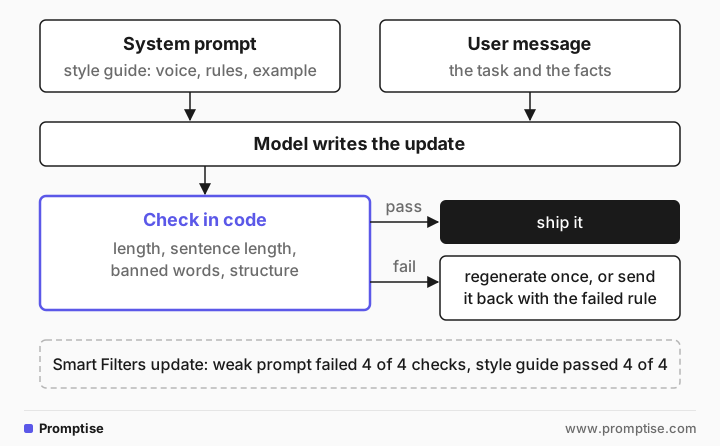
Write the style down as rules the model can follow and you can check: who is speaking, a length range, a sentence-length limit, a list of banned words, a fixed structure, and one short example of the voice. Put it in the system prompt so it applies to every task. Then check the measurable rules in code instead of rereading every output.
Key takeaways:
Adjectives aren't instructions. "Friendly but professional" leaves the model to guess. "Sentences of 20 words or fewer, no exclamation marks" doesn't.
Banned-word lists work when they are short and concrete.
One example of the voice does more than a paragraph describing it.
Use only the facts you supply. Style prompts often trigger filler claims; forbid them.
Check length, banned words and structure in code. They are cheap to verify.
[02]
What "friendly but professional" produces
The task: announce a small feature to customers. The facts:
Feature: Smart Filters, released October 14.
- Save any combination of inbox filters (sender, label, date range) under a name.
- Share a saved filter with your team; edits sync for everyone.
- Available on Pro and Team plans.
- Find it under Inbox > Filters > Save current view.
The weak prompt: "Write a friendly but professional product update for our customers about this new feature," followed by the facts. The output, trimmed:
Subject: New — Smart Filters (released Oct 14): Save, share, and sync your inbox views

Hi there,

We’re excited to announce Smart Filters, a new way to save and share custom inbox views — released October 14.
…
- Makes it faster to switch between focused workflows (e.g., “Billing follow-ups,” “Marketing drafts,” …).
…
3. To share, open the saved filter’s settings and toggle share with your team. Edits made to that shared filter will update for everyone.

Questions or feedback?
If you need help or want to share feedback, reply to this email or contact our support team — we’d love to hear how you’re using Smart Filters.

Thanks,
[Your Company/Product Team]
It is 211 words with five headed sections, opens with "We're excited", and adds a step the facts never mention ("open the saved filter's settings and toggle share"). Nothing is badly written. It just isn't your style, and one step may not match the product.
[03]
The style guide prompt
You write product updates for Tidy Inbox customers.

Voice: a helpful colleague explaining a change. Plain, direct, calm.
Rules:
- 90 to 120 words. One short title, then 2 short paragraphs, then one line that starts with "Try it:".
- Sentences of 20 words or fewer. Active voice. Address the reader as "you".
- Use only the facts provided. No claims about time saved or productivity.
- No exclamation marks. Never use these words: excited, thrilled, game-changer, seamless,
  powerful, revolutionize, unlock, leverage, effortless.

Example of the voice:
"You can now pin a conversation to the top of your inbox. Pinned threads stay put until you unpin them."
The user message is just "Write the update for this feature." plus the same facts. The output:
Smart Filters (released Oct 14)

You can save any combination of inbox filters under a name. That includes sender, label, and date range. You can later open that saved view whenever you need it. Saved filters make it easier to reuse the same criteria.

You can share a saved filter with your team. When anyone edits the shared filter, the changes sync for everyone. Smart Filters are available on Pro and Team plans. You will find the feature under the inbox Filters menu.

Try it: Inbox > Filters > Save current view
Same facts, nothing invented, and the shape you asked for. It's a little flat ("You can" opens four sentences), which is the usual cost of tight rules. If that bothers you, relax one rule at a time, for example "vary sentence openings".
[04]
Check the rules in code
Most style rules are measurable. A short checker catches drift before a person has to read anything:
import re

BANNED = ["excited", "thrilled", "game-changer", "seamless", "powerful",
          "revolutionize", "unlock", "leverage", "effortless"]

def check(text):
    sentences = [s for s in re.split(r"(?<=[.!?])\s+", text) if s.strip()]
    return {
        "words": len(text.split()),
        "longest_sentence": max(len(s.split()) for s in sentences),
        "exclamations": text.count("!"),
        "banned": [w for w in BANNED if w in text.lower()],
        "try_it_line": "Try it:" in text,
}WEAK words=211 longest_sentence=37 exclamations=0 banned=['excited'] try_it_line=False
STYLE GUIDE words=92 longest_sentence=16 exclamations=0 banned=none try_it_line=TrueRun it on every output. When a check fails, regenerate once or send the text back with the failed rule ("The update is 140 words; cut it to 120"). Tone itself is harder to measure; review a sample by hand or use a rubric with an LLM judge (see beginner eval loops).
If your prompts live in Python, Promptise Foundry guards can run the banned-word and length checks on every call. content_filter blocks the words in both input and output, and length counts characters:
from promptise.prompts import prompt
from promptise.prompts.guards import guard, content_filter, length

@prompt(model="openai:gpt-5-mini")
@guard(content_filter(blocked=BANNED), length(max_length=900))
async def product_update(facts: str) -> str:
    """Write the update for this feature.

{facts}"""[05]
How to write a style guide that works
Name the voice in one line, by role, not by adjectives: "a helpful colleague explaining a change".
Set length as a range, and for short texts prefer sentences or paragraphs over exact word counts. Models hit ranges more reliably than exact numbers.
Fix the structure: title, paragraphs, a closing line. Structure is easy to follow and easy to check.
Ban the words you keep deleting. Collect them from real outputs. Keep the list short.
Add one example in the target voice. Keep it on a different topic so the model copies the style, not the content. See few-shot prompting.
Forbid unsupported claims. "Use only the facts provided" stops invented benefits and steps.
For long documents, where style must hold across many sections, see long-form control.
[06]
Common mistakes
Mistake | Why it fails | Fix |
|---|---|---|
Describing tone with adjectives | The model fills in its own default style | Give rules and one example |
Style rules in every user message | They get diluted or edited per task | Put them in the system prompt once |
Naming a famous writer's style | Results vary and may copy phrasing | Describe the features you want |
A long banned list | Long lists get partly ignored | 5 to 10 words you actually see |
Exact word counts | Models miss exact numbers | Use ranges, sentences or paragraphs |
No facts boundary | The model adds plausible steps and benefits | "Use only the facts provided" |
[07]
Frequently asked questions
Where should style instructions go, system or user prompt?
In the system prompt, so they apply to every request and don't compete with the task. The user message carries the task and facts. See system vs user prompts.
How do I make a model stop using words like "delve" or "excited"?
List them as banned words in the system prompt and check for them in code. A short list of words you actually see works better than a long generic one.
Does setting a persona change the style?
A little. A role like "a helpful colleague" sets a default register, but concrete rules and an example change output more. See role prompting.
Why does the model ignore my word limit?
Models count words poorly. Give a range, use sentence or paragraph counts, check the length in code, and send the text back with the exact overage when it misses.
Should I use temperature for style?
Temperature changes randomness, not style. Some reasoning models only accept the default value. Control style with the prompt and checks.
[08]
Next steps
The basics of a clear prompt: ask, role, constraints, format.
Teach the voice by example: few-shot prompting.
Style across long documents: long-form control.
Test the prompt on many inputs: beginner eval loops.
Refine the guide round by round: iterative prompt refinement.
Keep one art style and character across a series of images: consistent AI image generation.